

How to activate Stripe payment gateway in Trevlix
Activation of the Stripe payment gateway in Trevlix can be done together within 1 day.

The procedure is as follows:
- activate the Payment gateway module in Trevlix
- create your own Stripe account
- set up a Stripe developer account for us
-
We will then activate the payment gateway for you in operational mode and you can start accepting credit card payments.
We'll show you everything in pictures Let's do it:
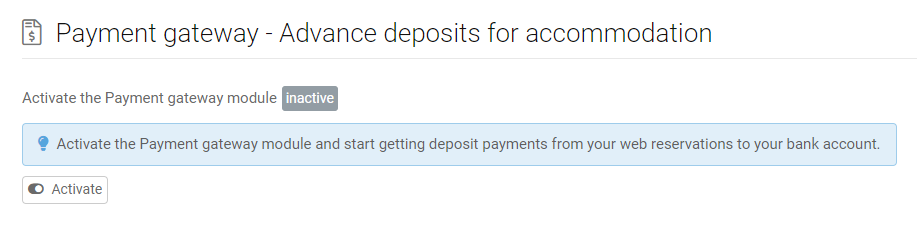
1. Activation of the payment gateway module
In Trevlix, just click on:
Settings – Payment Gateway – Activate
and confirm consent to activation.
2. Creating a Stripe payment gateway account
What you will need
When registering the Stripe payment gateway, you will need:
- login email to which you will register the website (if you have multiple websites, you can have multiple separate websites in your Stripe account on 1 email)
- phone (for sending the security PIN via SMS)
- company data(headquarters, ID number, VAT number = VAT number, if you are a VAT payer)
- contact detailsand date of birth of the business owners
- URL address of the website, e.g. www.my-hotel-domain.com
- Stripe account name we recommend creating it according to the website for which it is intended, e.g. muj-hotel.cz (if you have several websites, you can in the future to the same Stripe account add additional Stripe "sub-accounts" and switch between individual websites in one Stripe account)
3. Setting up a Stripe payment gateway account
On the Stripe payment gateway homepage is the "Start now" button that opens the registration of a new account. Or you can directly click on the link:
https://dashboard.stripe.com/register
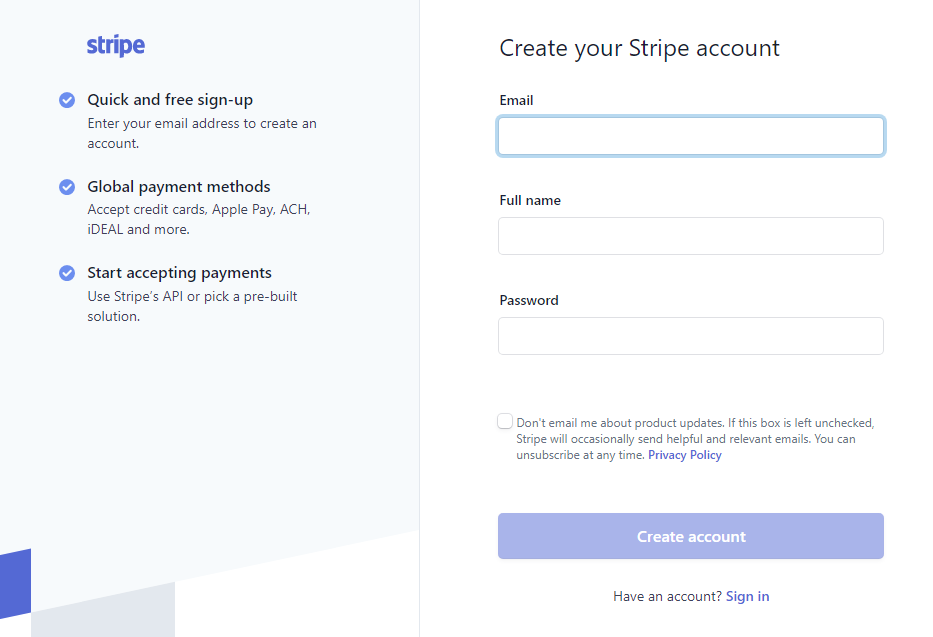
And please fill in all the required information to set up a payment gateway.
Stripe will guide you through the registration process.
4. Creating access for us to set up the payment gateway
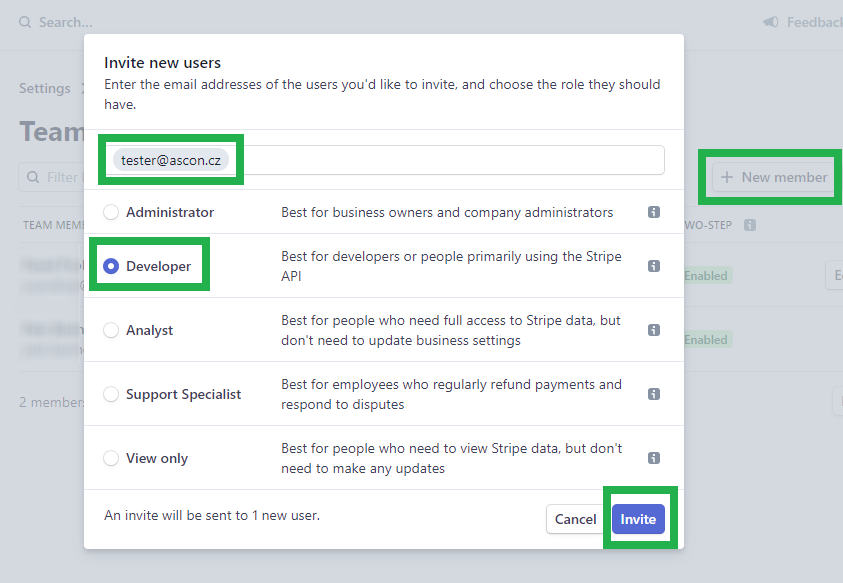
Now please create access for our email in your account tester@ascon.cz (of the Developer type), which will allow us to integrate your payment gateway.
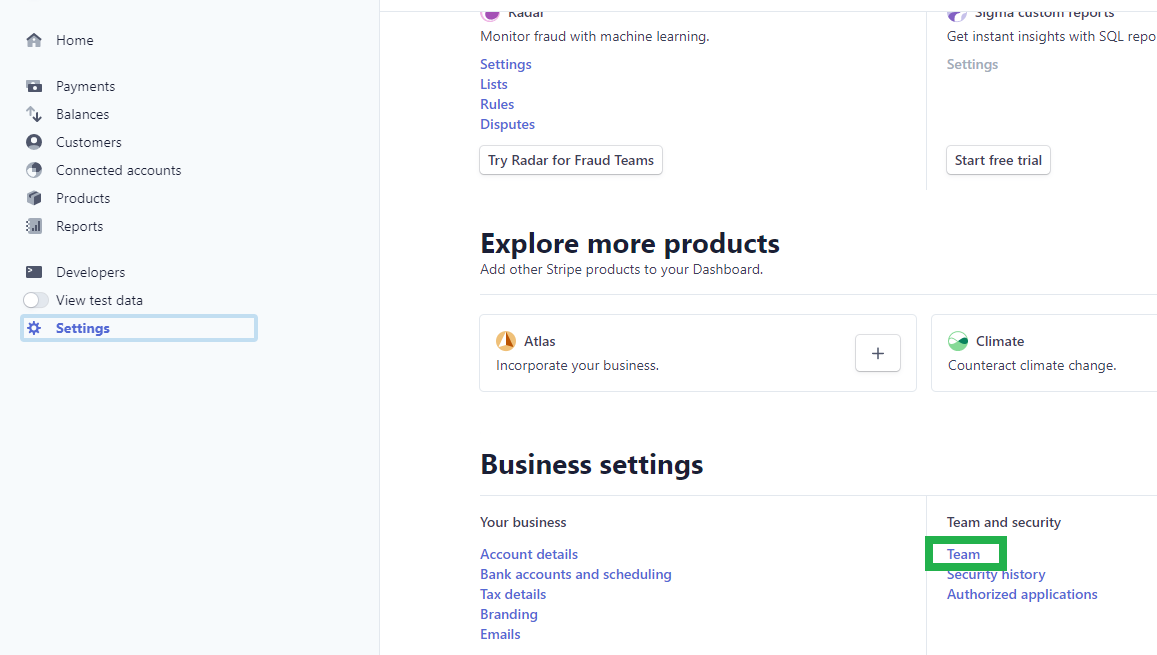
How to do it? In your Stripe account, please click:
Settings - Business settings - Team and Security - Team
and then on the button + New member
You can see the whole procedure in two pictures:
Done
That's it.
We'll set up your Stripe payment gateway for you:
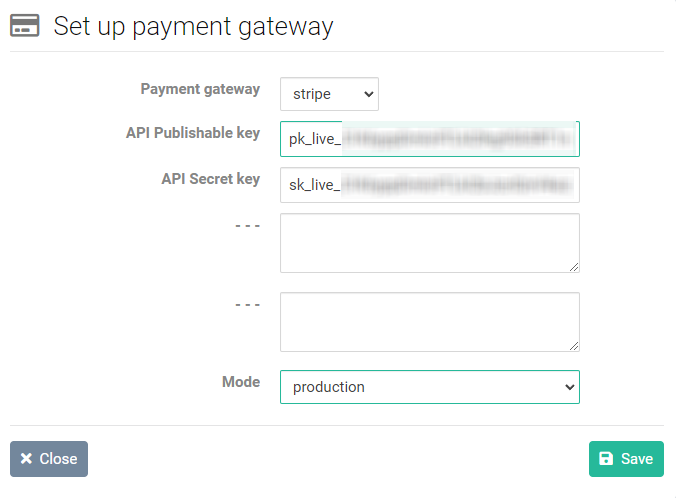
and send you a message that everything's done 👍